Slack Prerequisites
Slack To Teams Migration
Slack workspace admin account
To check if your user account has required permissions:
-
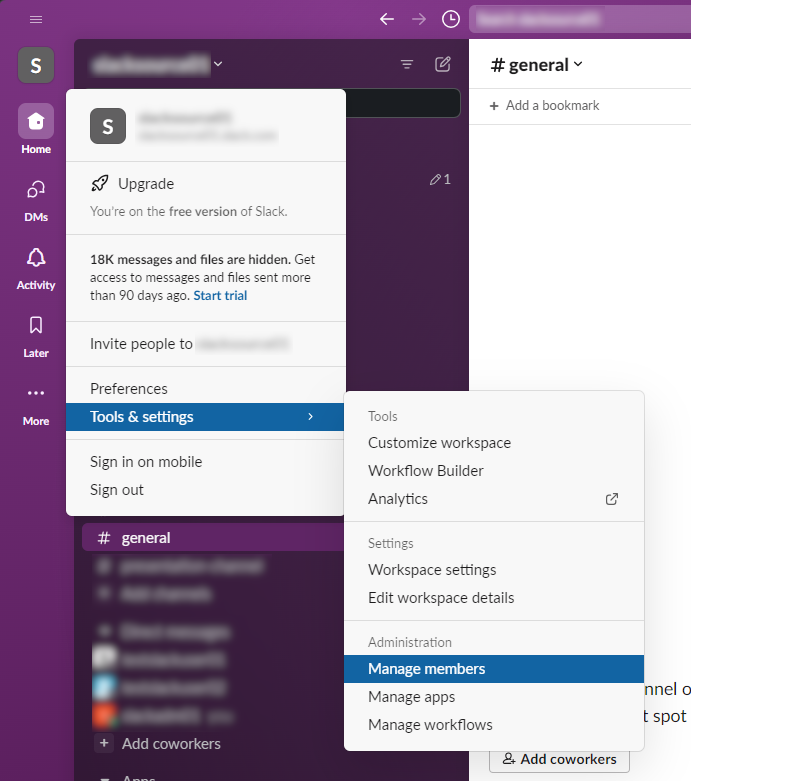
From your desktop, click your workspace name in the sidebar. Hover over Tools & settings, then click Workspace members:
-
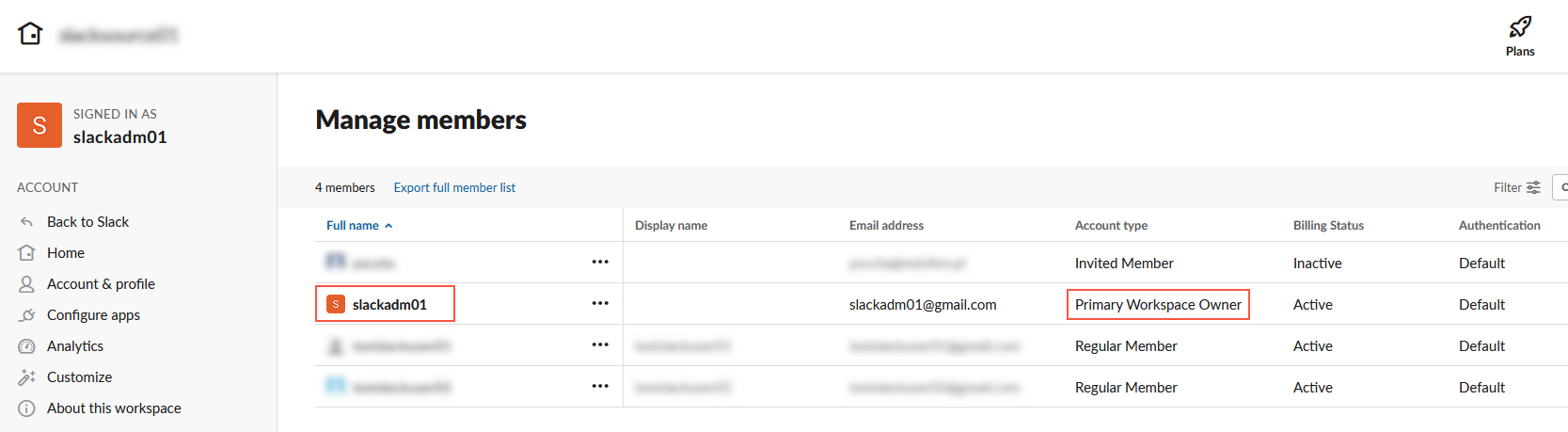
On the list find your currently logged-in user and check his account type:
-
Ensure that your currently logged-in user has one of following account types:
- Workspace Primary Owner
- Workspace Owner
- Workspace Admin
Redworks is never asking for Workspace Admin account to perform migration process. We are using reduced permission set required only to export data from Slack. Required account is handled by client only to provision migration app with reduced permissions.
Due to Slack limitation of free accounts (free accounts can only see messages from 90 days) it is strongly recommended to provision migration app with paid account
Currently, Slack Enterprise Grid roles are not supported. We are working on enabling those roles in Q2 2024.
Microsoft M365 Prerequisites
Slack To Teams Migration
Teams Migration
M365 tenant admin account
By default, it is required to have one of following roles to successfully perform migration:
- Global admin role
To check if your user account has required permissions:
- Log in to your Microsoft 365 tenant using the url: https://www.office.com/login
-
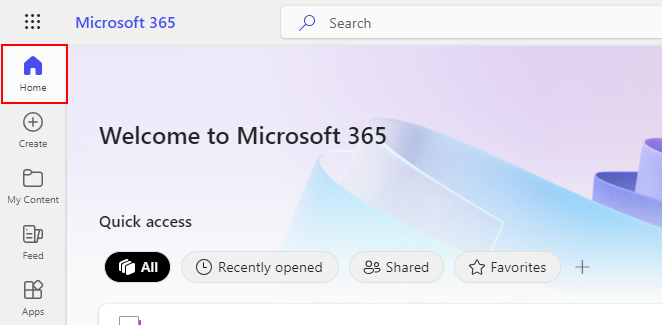
In the welcome page of Microsoft 365 find app tray button and click it:
-
Click on Admin app icon to navigate to tenant administration panel:
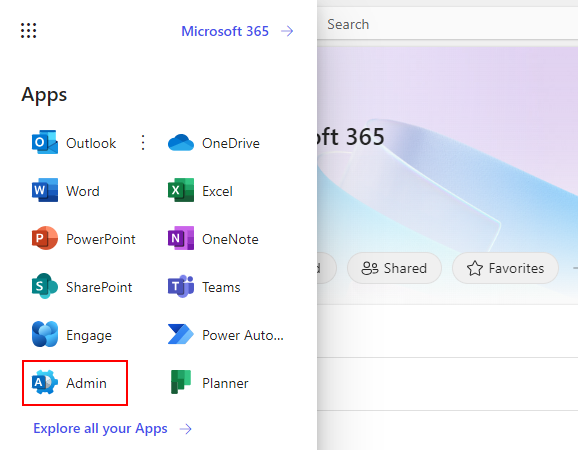
If on this step Admin App button is not visible - most likely your current logged-in user does not have Administrative role assigned.
-
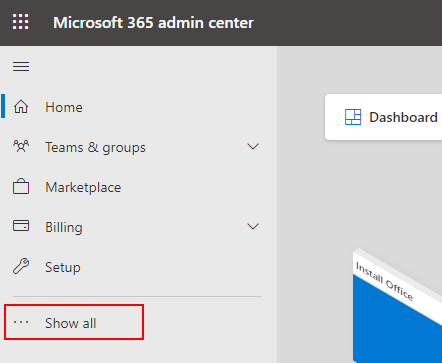
On main screen of Microsoft 365 admin center - click “Show all” to expand all administrative options:
-
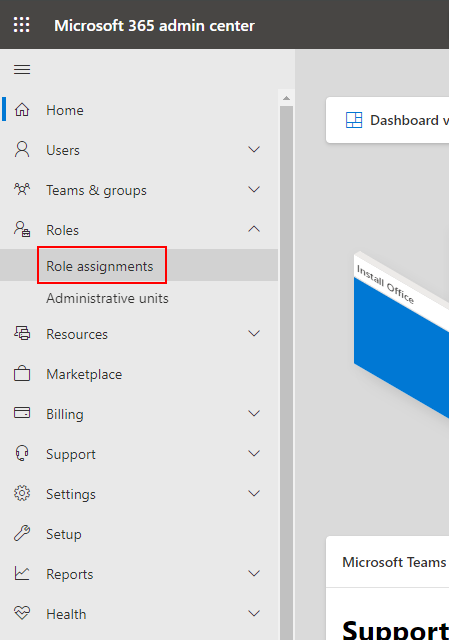
Click on Roles -> Role assignments to open global admin roles page:
-
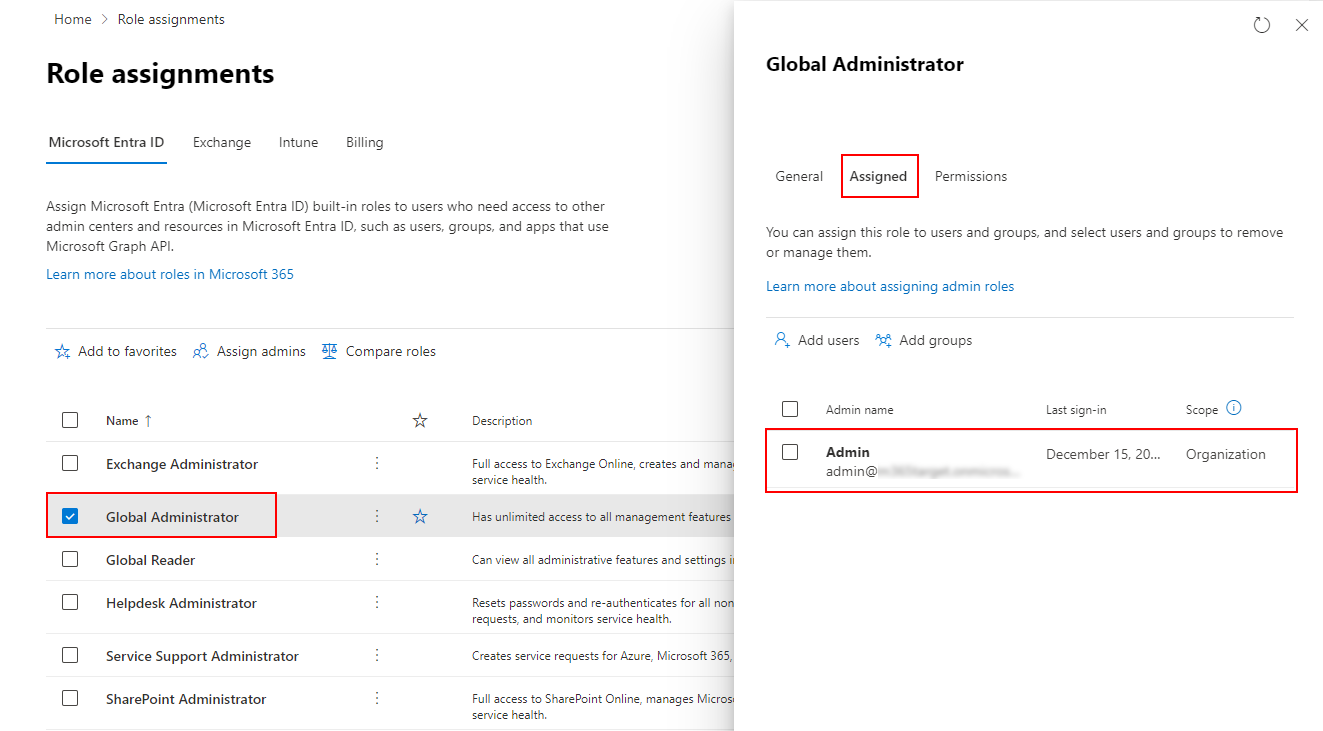
Find Global Administrator role on the list, and select it. In dialog window select Assigned tab: If your user is on that list -> he can successfully provision Migration App.
Redworks is never asking for Global Admin account to perform migration process. We are using reduced permission set required only to import data into Microsoft Teams. Required account is handled by client only to provision migration app with reduced permissions.