Slack Unprovisioning
Slack To Teams Migration
Before starting, make sure you have admin permissions in the Slack workspace.
Slack Unprovisioning
- Open Slack workspace which was used for migration previously.
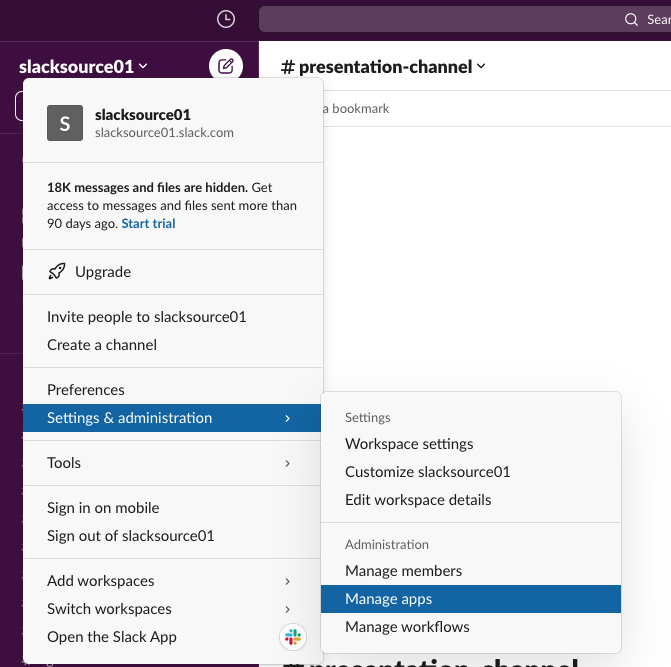
- Click on your workspace name in the top left corner. From the menu that appears, click on “Settings & administration”, then select “Manage apps” from the dropdown:
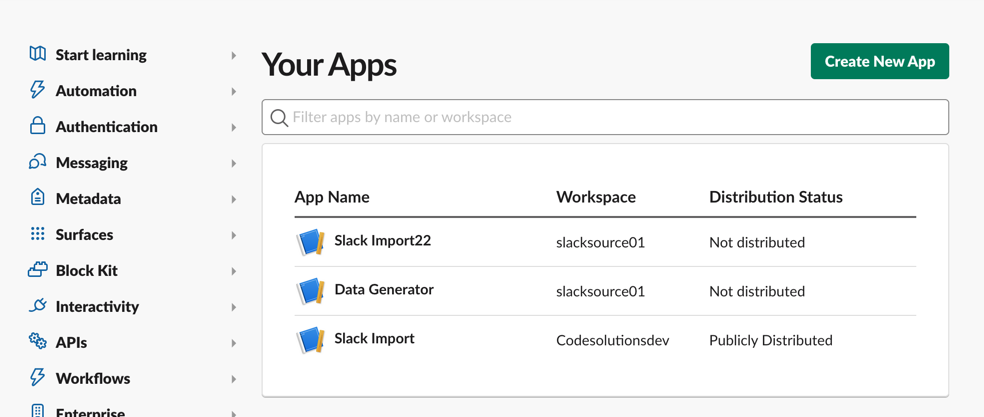
- The Slack App Directory page will appear. There, you can see a list of all installed apps in your workspace. To delete an app, find it in the list and click on the name of the app. This will take you to the app details page:
- On the Settings page, scroll to the bottom, there is an option to “Delete App”. After confirmation, your app will be removed from Slack workspace completely.
If you installed app on multiple workspaces, you need to repeat steps for each workspace separately.